Transaction Log
Last updated: 10/23/2025
The transaction log tracks all transactions made through any payment orchestrator utilized by your business unit.
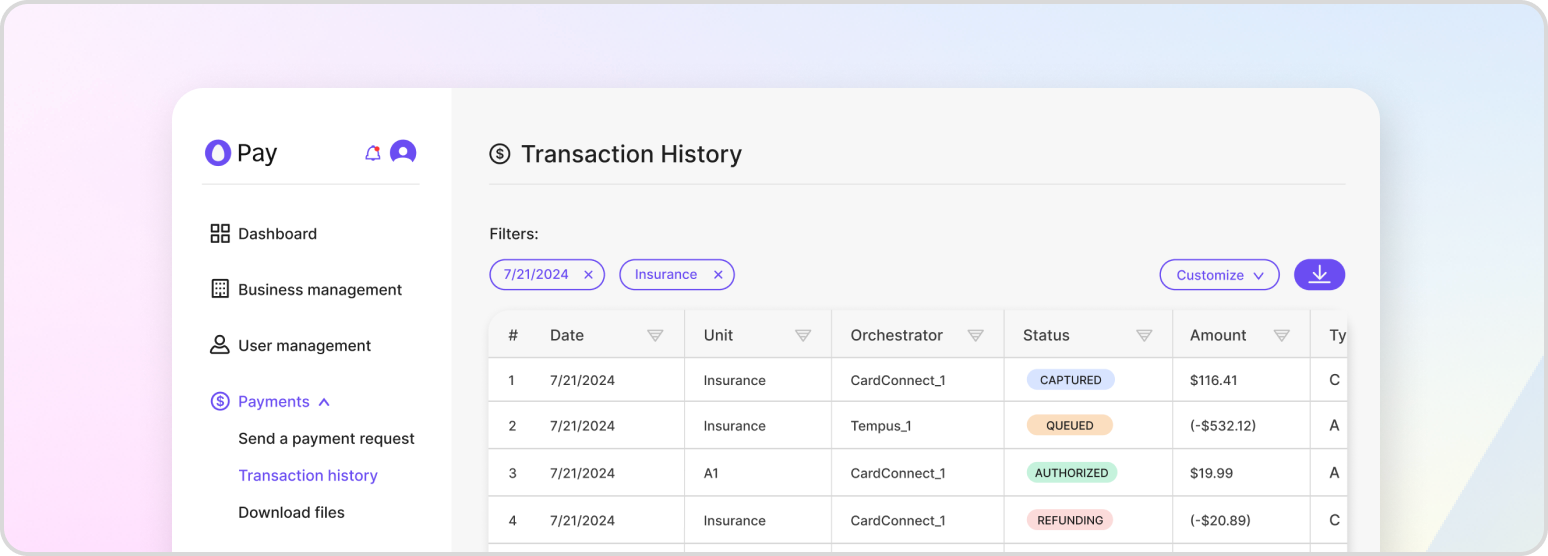
The transaction log within your HatchPay account tracks all transactions made through any payment orchestrator utilized by your business unit. This log is helpful for verifying the status of your transactions, such as if a customer has an issue with their payment, users in your business unit can look into the logs to find the issue.
Viewing Transactions
To access the transaction log, you can navigate to the “Payment History” page within your HatchPay account. From there, you can filter the table based on date and merchant to organize the transactions and find the one you are looking for.
Transaction Statuses
A transaction can have different statuses depending on the step it is on when authorizing and capturing a payment. For more information on this, please refer to our Auth + Capture Payment tutorial.
Modifying a Transaction’s Status
There may be times when you need a transaction to be voided or refunded. You can do so by clicking on the transaction you want to change the status of from the “Payment History” table. There, you can either select “void” or “refund.” Note that either of these actions cannot be reversed.
| Status | Status Definition | What Triggers this Transaction | Duration of the Status | Can the status be changed? |
|---|---|---|---|---|
| CAPTURED | The funds are transferred from the customer to the merchant’s account. | Completing a transaction in the I2P flow (accessed by clicking on “Take Payment” from the console). You will know it is complete when you see a checkmark in the middle of the screen. | Until it is voided or refunded. | Yes |
| FULL_REFUND | All items in the transaction have been refunded for their full amount. | Selecting an applicable transaction from the “Transaction History” page, then selecting REFUND, then selecting all items to be refunded for their total price. | No | |
| FULL_VOID | All items in the transaction have been voided. | Selecting an applicable transaction from the “Transaction History” page, then selecting VOID, then selecting all items to be voided. | No | |
| PARTIAL_REFUND | One or more items have been refunded by an amount lesser than or equal to their original amount. | Selecting an applicable transaction from the “Transaction History” page, then selecting REFUND, then selecting at least one item to be refunded for lesser than or equal to its regular price. | Until a full refund has been made. | Yes |
| CAPTURE_FAILED | A transaction was attempted to be captured and it failed. | Attempting to complete a transaction in the I2P flow (accessed by clicking on “Take Payment” from the console) but getting an error notification in response. | Until a successful capture is made. | Yes |
| PENDING | The customer has initiated the payment, but has not put in any of their payment information. | In the I2P flow (accessed by clicking on “Take Payment” from the console), after the merchant has sent an invite to the customer for the transaction. | Until the customer has completed the transaction | Yes |
| REFUND_FAILED | A refund was attempted but failed due to an issue on Tempus’s side. | Until a successful refund is made. | Yes | |
| RESCINDED | The transaction was canceled before the customer could initiate their side of the transaction. | In the I2P flow (accessed by clicking on “Take Payment” from the console), after the merchant has sent an invite to the customer for the transaction, then clicking “Cancel.” | No | |
| VOID_FAILED | A void was attempted but failed. | When a void is attempted from the Transaction History page but fails due to an issue on Tempus’s side or a partial void was attempted. | Until a successful void is made. | Yes |
| PENDING_GATEWAY | A capture or refund is about to be attempted. | A payment operation is about to be executed. | Until the transaction goes through or a timeout occurs and a reversal is necessary. | Yes |
| REVERSAL_IN_PROGRESS | An attempt at capturing or refunding a transaction has had a timeout. A reversal is being attempted, and if successful, the capture or refund will be attempted again. | A capture or refund attempt has had a time out and a reversal has been attempted less than three times without succeeding. | Until the transaction goes through or all reversal attempts timeout. | Yes |
| RECONCILIATION_REQUIRED | An attempt at capturing or refunding a transaction has had a timeout, as well as its three subsequent reversal attempts. | An attempt at capturing or refunding a transaction has had a timeout, as well as its three subsequent reversal attempts. | No |
Generating Transaction Data
HatchPay’s transaction logs gives your business unit’s data analysts information about its transaction history to analyze. From the Payment History page, you are able to export files in JSON, CSV, or TXT format. From the “Export” dropdown, select the file type you would like to export the transaction data as and it will be downloaded to your computer.